
How to Enable Replay Buffer in OBS Studio

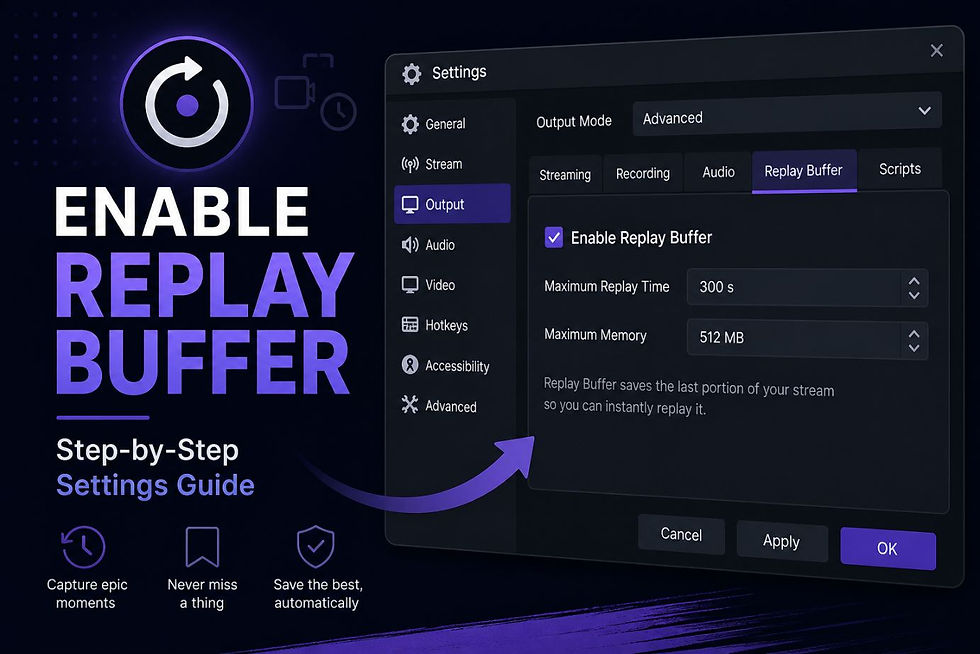
By default, OBS Studio does not have the Replay Buffer enabled. You will need to manually turn it on through the settings, as shown in the images below.
First, look at the bottom-right corner of OBS Studio. You will see buttons such as Start Streaming and Start Recording.
Next, click Settings, located near the bottom-right corner of the OBS window.

Once the Settings menu opens, you will see a list of categories on the left side. Select Output. At the top of the Output settings page, locate the dropdown menu labeled Output Mode.

Change the Output Mode from Simple to Advanced.
After switching to Advanced mode, additional tabs will appear.
Select the Replay Buffer tab.

Inside the Replay Buffer tab, check the box labeled Enable Replay Buffer.

Once enabled, click Apply in the bottom-right corner to save the setting.
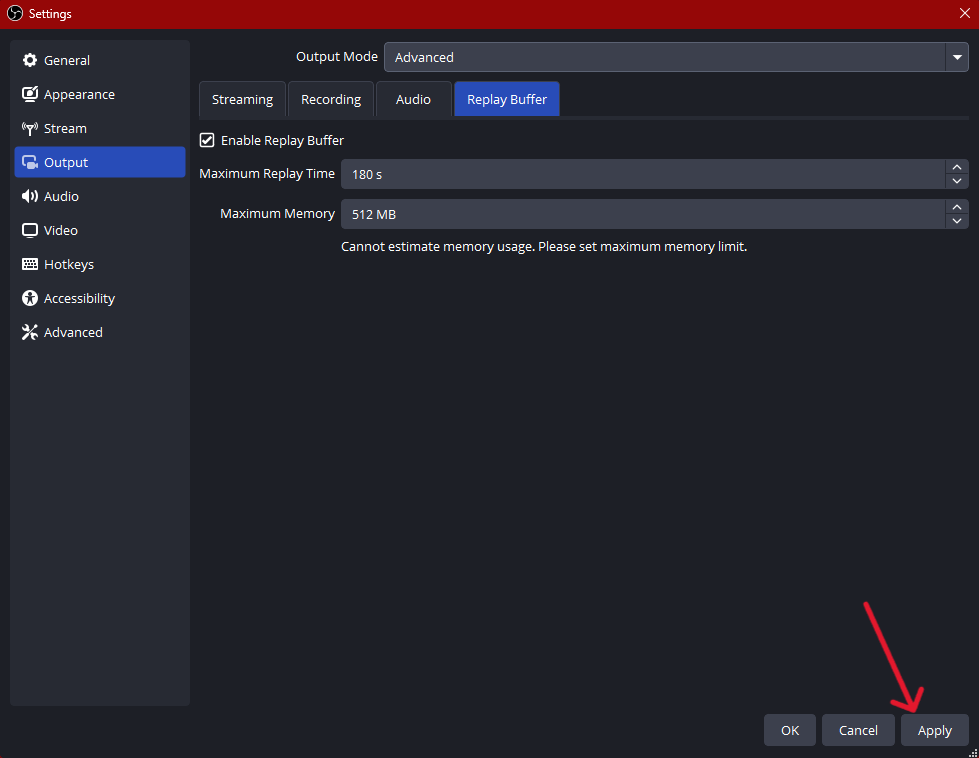
Replay Buffer is now configured and ready to use.
Now once you have videos recorded an save, consider saving space by using our free Video Compression Tool which has no ads or downloads.


Comments